
How to Add a Base
Save layout links to your private library to track defenses and share when ready.
You can save up to 200 bases.
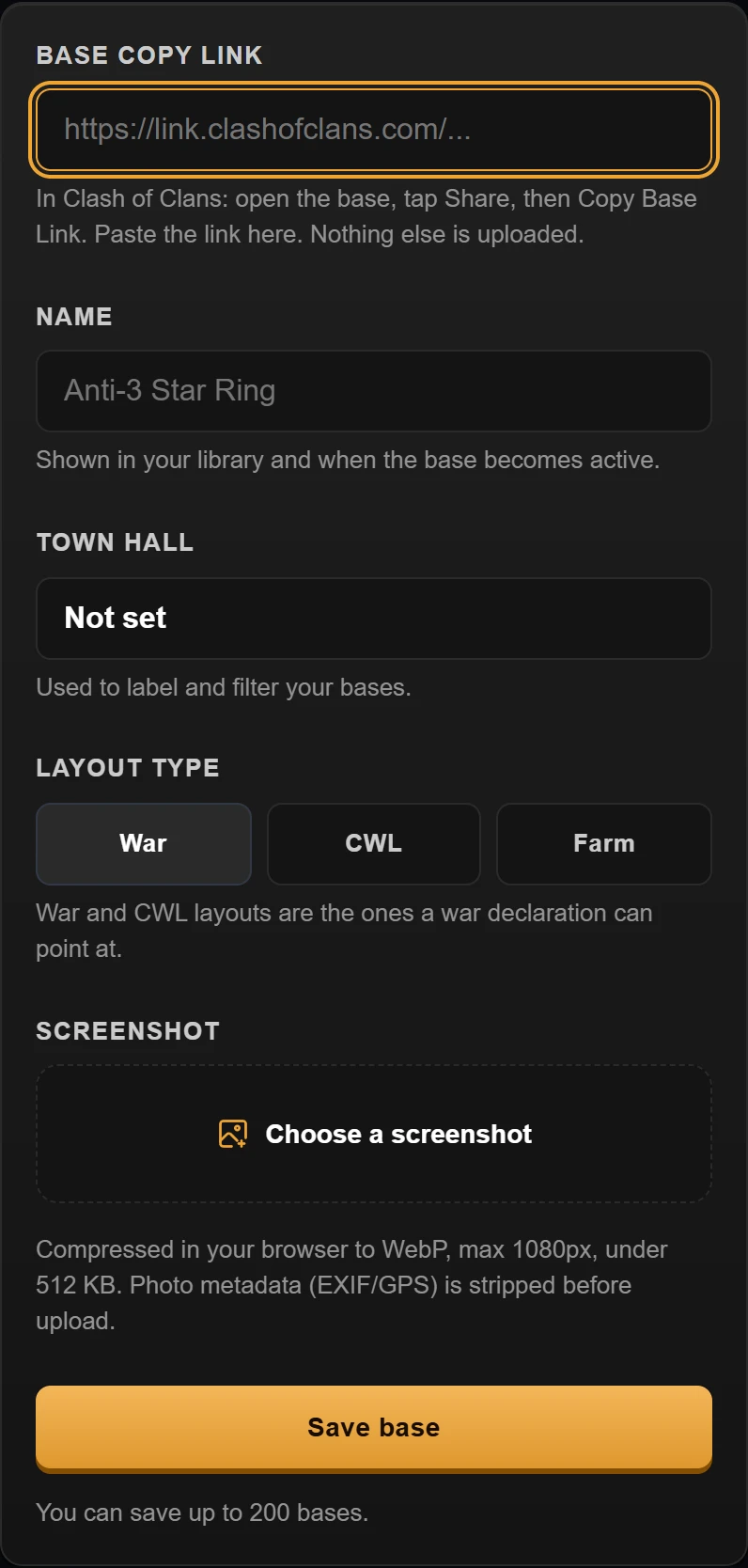
Example data. The add base form at phone width, from the copy link field down to Save base.
Add a Base
Get your base link from the game
In Clash of Clans: open the base, tap Share, then Copy Base Link.
Paste the link into BaseTrace
Go to My Bases and tap Add base. Paste the link into the Base copy link field.
Enter a name and pick Town Hall
Give your base a recognizable name in the Name field. The name can be up to 60 characters. Pick your Town Hall level from TH9 to TH18. Select the layout type: War, CWL, or Farm.
Upload a screenshot (optional)
You can attach a screenshot with Choose a screenshot. The browser re-encodes the image before upload, which removes location and camera data. You erase names later in the publish panel.
Save to your library
Tap Save base. The layout is saved to your private library.