
How to Edit, Archive, or Remove a Base
Manage existing bases, update names, archive inactive layouts, or delist from the gallery.
You can update your personal library and manage published gallery cards at any time.
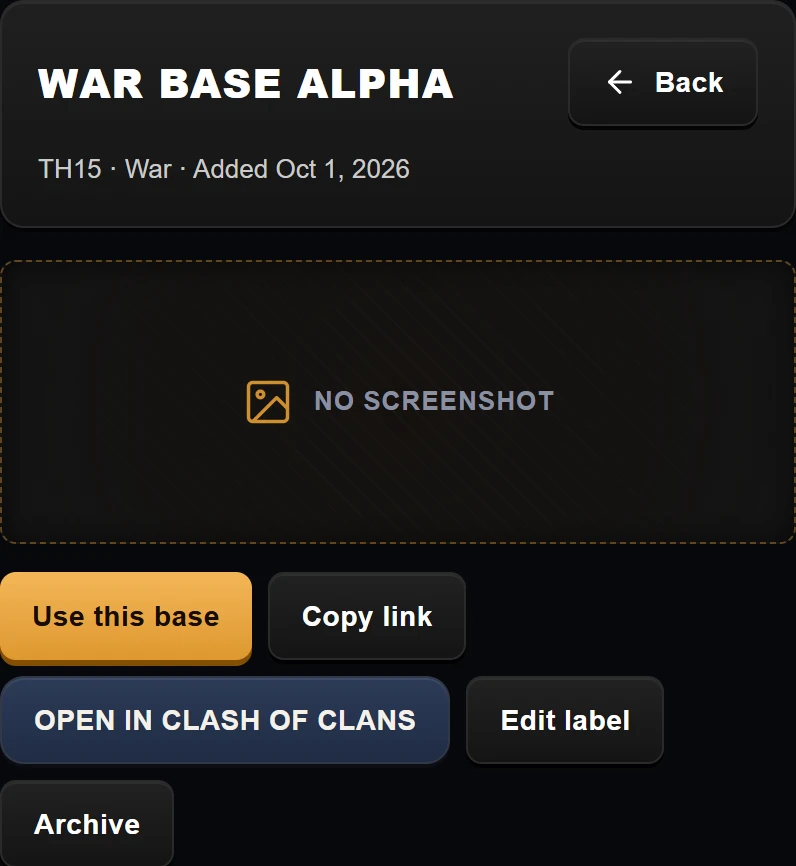
Example data. The base header and its action bar at phone width.
Managing Your Saved Base
Edit the base name
In My Bases, open the base. Tap Edit label, type a new name, and save it. Only the private label changes.
What you cannot change
The edit form changes the label. The copy link, Town Hall level and layout type stay as saved.
Use this base
To make this layout the base for a war, tap Use this base. This makes the layout your active base for a war, so BaseTrace saves incoming attacks against it.
Archive a base layout
To hide an old layout from your active list, tap Archive. The base is marked Archived and cannot be set active. To bring it back, add its copy link again.
Published Card
Withdraw from the public gallery
If you no longer want your base card visible in the public gallery, tap Withdraw.
The card stops being shown. Players who already imported your layout keep it, but new visitors cannot see or copy the card.
Change screenshot or republish
If the card is pending, tap Discard image to remove the screenshot, then add a fresh one.
If the card is already published, tap Withdraw first. Then tap Publish again, discard the old image, add the new screenshot, and submit.